May 20 10

South Florida Super Bowl Promotional Flash Drives

by Nick

In today was an interesting design for the South Florida Super Bowl Committee printed on AE style custom USB drives.

AE style Custom USB Drives with Super Bowl Logo Imprint

Looks great, huh? Read more details on these AE custom flash drives and start thinking about your own custom USB drives today!

Bookmark and Share
May 19 10

Anvil Eco-Friendly Wood Custom Flash Drives

by Nick

Just take a peek at our beautiful and exquisite WDR7 square shaped wood custom USB drives with the earth-friendly Anvil logo print.

WDR7 Style Wood Custom USB Drives with Printed Anvil Logo
These unique wooden drives are magnetic and will drive your campaign into a new level of awareness. Knock on wood!

WDR7 Style Wooden Custom Flash Drives Featuring Anvil Earth Friendly Imprint
Available in shades of light and dark, these sharp looking drives are perfect for environmentally friendly organizations and companies that want to Go Green in style!

Go ahead and read more about WDR7 style wooden custom USB drives to get the full scoop on this hot device!

Bookmark and Share
May 17 10

USB Business Card Printed Custom Flash Drives

by Nick

We just completed these awesome executive business card custom USB drives for Asian Gang Investigators law enforcement unit in California.

Business Card Custom USB Flash Drives with Law Enforcement Logo
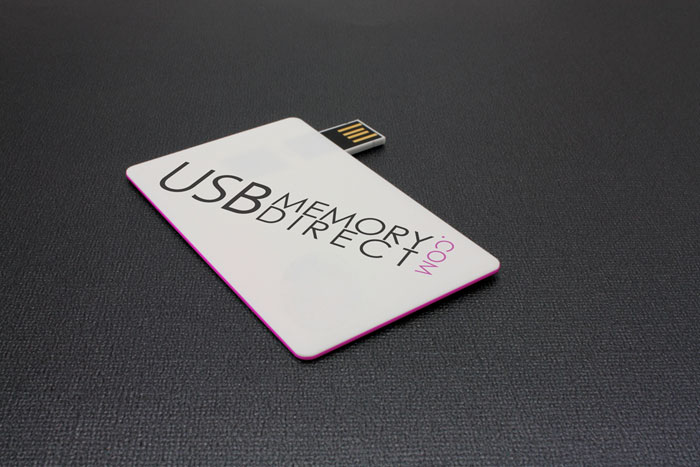
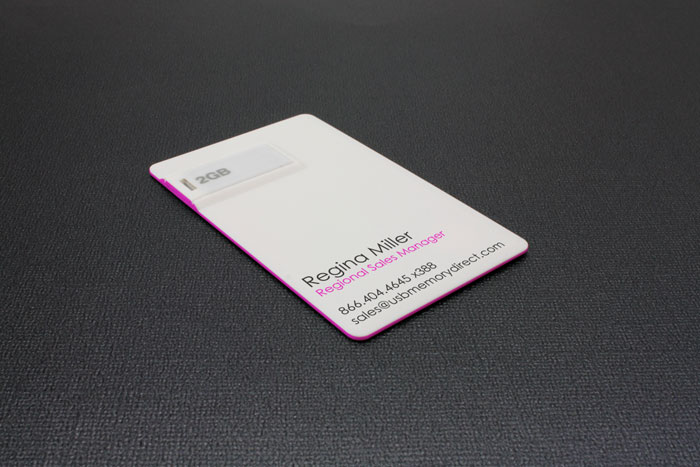
Our business card style custom flash drives are made of durable plastic, with a USB extension in the back that easily snaps out of place for utilizing the flash drive, and can be quickly retracted back into the thin business card design.

Card Style Custom USB Drives with Asian Gang Investigators Print
If you want custom USB flash drives that reflect your daily activity in a hectic world, these are a perfect match, because they are both lightweight and portable devices that fit in a practical fashion.

Check out all the specs on these amazing card style custom flash drives.

Bookmark and Share
May 14 10

Winn Technology Custom Shaped USB Flash Drives

by Nick

A handsome custom shape USB flash drive has just been completed for Winn Technology Group.

USB Flash Drive with Custom Design and Shape
This unique custom drive features a tailored water design on the front, with the company logo print on the second side.

USB Flash Drive with Custom Design Showing Second Side
This long oval custom flash drive is made from a rubber material that is both soft to the touch and able to withstand the test of time, also featuring an easy removable cap.

USB Flash Drive with Custom Design On Second Side And Cap Removed

As you can tell, we are very passionate about getting quality custom USB drives off the assembly line for our customers. Let us know your thoughts on this brand new design!

Bookmark and Share
Mar 11 10

How To Make Custom Autorun For Your Own USB Drive

by Nick

If you’re like most flash drive enthusiasts, the topic of the notorious ‘Autorun.inf’ is bound to come up at some point when working with data customization. The purpose of this file is a mystery to most computer users, however it is the cornerstone of any automated task(s) that should occur once the drive is inserted, hence the file name ‘Autorun’.

Autorun is able to change these (and I will show you how in a minute):

  • Which file or executable should be opened once the USB drive is plugged in.
  • Your custom icon of choice whenever a user sees the USB drive listed within Windows Explorer.
  • A custom name for your USB drive as shown in Explorer, only up to 12 characters.
  • Options for the menu shown whenever you right-click the USB drive icon.

One thing to remember with this drive feature is that it works only on machines with the versions of Windows after 98 but before Vista, such as 2000 and XP. This is because previous versions of Windows did not include the drivers for USB. Newer versions of Windows like XP SP3 and Vista began disabling autorun as a security precaution against malware. Obviously, in these scenarios any features using autorun with a flash drive would fail massively.

When you plug in a flash drive on a Windows system that recognizes it, if there is no custom autorun by default you will see a lame pop up window such as one of these:

Windows 2000/XP -

Default Autorun Window from XP

Windows Vista/7 - (cannot be changed unfortunately)

Default Autorun Window from 7

For 2000/XP you can customize your drive’s behavior by creating an ‘Autorun.inf’ file. Do this by simply right clicking in your flash drive directory, choose ‘New’ and then ‘Text Document’. Rename the file by hitting ‘F2′ or right clicking the new text file and choosing ‘rename’, then change the name to ‘Autorun.inf’. Yes, it has to be called this exact name or your custom autorun commands will not work. Windows will check the root of your flash drive for this exact file and follow its commands if it is there.

Now you must enter your commands for this file. It is still technically a text file, so you can open in notepad and it should do this automatically on most systems if you just double click the file.

The Ropes:

All ‘Autorun.inf’ files must start with:

[autorun]

… which basically informs your computer that this is, indeed, autorun. (facepalm) You will now just need to hit enter to the next line as all of autorun goes by commands on a line by line basis. So on the next line…

The command to run a file is:

open=example.exe

… where example.exe should be your file of choice, be it a .exe, .pdf, .ppt, or .doc, any type of file will be opened upon drive insertion. The file can be named anything (within reason) as long the exact same file name is put here.

The command for a custom icon is:

icon=example.ico

… where example.ico is your custom icon of choice. You can also name it whatever you like as long it keeps the .ico extension and has the right name in the autorun file.

The command for a custom drive name is:

label=example drive

… where example drive is your custom name of choice. Please bear in mind that due to volume name restrictions, you can only use names with up to 12 characters total.

The command for adding your own context menu item is:

shell\example=Testing 123
shell\example\command=example.exe

… where the first line defines the item (example) then the text to be displayed in the menu (Testing 123).

The second line tells the computer what to open on clicking that menu item. In this case, it is example.exe.

Also don’t forget to include the name of your command from the first line (example) in the second line right after shell\. Doesn’t have to be example, it can be whatever you want, within reason. The really cool thing is that this pair of lines can be repeated for as many menu items you wish to add! Just be sure to name your items differently so they aren’t repeated twice, which would likely cause menu item failure.

So an example of a custom autorun would all go together like this:
[autorun]
open=example.exe
icon=example.ico
label=example drive
shell\example1=What is this product?
shell\example1\command=what.exe
shell\example2=How to Order
shell\example2\command=order.exe

Wrap Up:
That’s all there really is to it! Easy, right? Just remember to save in notepad and copy the file to the root of your USB flash drive if you haven’t already and test it out on a compatible operating system. Hope you found this little article helpful and amusing. Have fun with your own custom autorun!

Bookmark and Share
Mar 4 10

Mechtronics Fully Custom SWM Style USB Drive and Packaging

by Nick

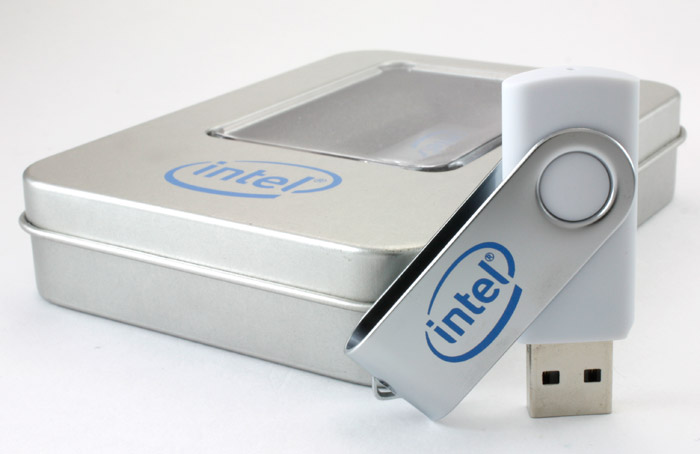
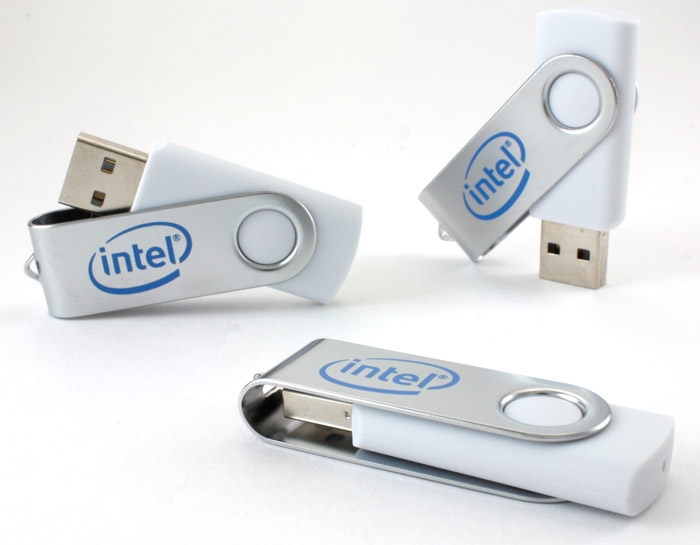
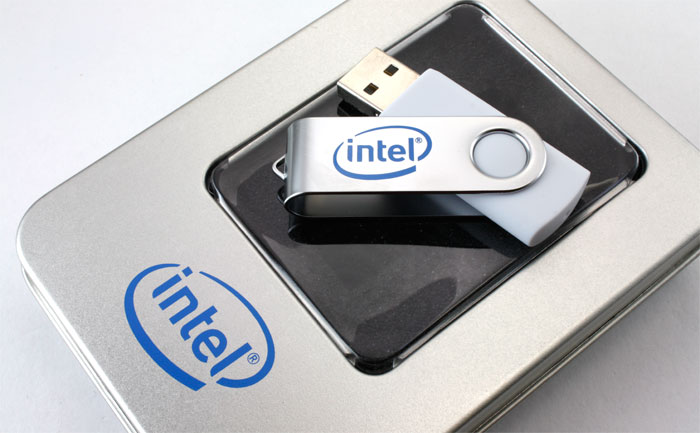
We just completed this order for Mechtronics using both the white color SWM style printable metal swivel flash drive along with our clear plastic case packaging option. You can choose from a variety of color choices (including custom colors) for this popular flash drive. As well, you also have several choices for a packaging option should you need one.

We think that they turned out pretty spectacular. What do you think?

A Slightly Open White SWM Style Custom Printed Flash Drive
A White SWM Style Custom USB Drive in a Closed Position
A White SWM Style Custom USB Drive Inside A Closed Clear Plastic Case
A White SWM Style Custom USB Drive Next To An Open Clear Plastic Case
A White SWM Style Custom USB Drive Inside An Open Clear Plastic Case

Bookmark and Share
Mar 1 10

Custom Printed Promotional Products Line Now Available

by Nick

We are proud to announce a new line of products that will carry your
USB Memory Direct Square Light Key Chain company image far and wide. Are you looking for new ways to appeal to clients in a universally appreciable way? You can be sure to find the solution with our customizable selections. These various products include items such as a Ceramic Coffee Mug, a Casual Tote Bag, and a Tri-Tip Highlighter.

These customizable products are some of the most popular household items used on a regular basis, ensuring that your logo will show up in many visible areas of life. They are made with high quality materials and craftsmanship so that they will remain treasured by your clients for many years to come.

USB Memory Direct Cotton Cap If you want to impress a sportsman, try our twister sports bottle for the ultimate refreshment. Who doesn’t appreciate an ergonomic wrist foam mouse pad? Help your clients organize their life in style with our leatherette padfolio that is fun to make plans with and hold onto. With your custom logo printed on these items, your marketing message is certain to get through.

You can make a direct positive impact on the lives of clients by giving them a tool that they use indefinitely, while carrying your brand with them wherever they go. These make for great promotional items with your custom printed logo and color of choice. If your latest marketing endeavors have been in a slump, this is an excellent route to bringing your efforts back to life.

For more great options to browse through, visit the main page for these new custom printed products.

Bookmark and Share
Dec 22 09

Booting Linux from a Flash Drive for File Recovery

by Nick

Hello again,

After a long time we are back to talk about some more cool tech stuff you can do with a USB flash drive. Todays topic will focus on booting the linux OS from a USB stick. The purpose for booting linux from a USB drive, at least the purpose of this guide, is to recover files from a broken install of the windows OS or any other OS for that matter. We can also run virus scans from the linux distro securely without infecting other pc’s or having to boot the infected pc.

What you will need:

  • A USB stick anywhere from 512mb to 2GB (Depending on the distro)
  • A main board capable of booting from a usb device.
  • and about 15 minutes plus download time.

Software to be used:

Step #1: Prepare the USB Drive

Once you have all your materials together go ahead and plug the USB drive in and backup all files you may have on the disk.

Step #2: Installing to The USB

Start up UNetbootin and select the following:

  1. Use the first radio button “Distribution”. This will download and install, automatically, the distro we want.
  2. Pick SystemRescueCD. We are going with this because it is easy the ntfs file system driver comes prepackaged so no additional customization is required.
  3. Next select your flash drive.
    NOTE: Be sure to select your flash drive and not your windows partition or primary partition, ’cause if you do then you will destroy the currently installed OS.
  4. Finally click “Ok”.
UNetbootin options to select

UNetbootin options to select

Step #3: Configuring Bios

We will need to setup your computer to boot from the usb stick. To do so first you mother board will need to support this feature and second you will need to do some configuration.

  1. Reboot your computer and hit “F2″ or “del” depending on your mother board to enter BIOS config.
  2. Search for the section labeled boot sequence, or named similarly. This will sometimes be filed under a separate section like advanced BIOS features, or similar.
  3. Move removable or usb to the top of the list. If you do not see these options listed your mother board most likely does not support USB boot. Consult google for more info on this.
  4. Reboot the computer with the drive plugged in.

Step #4: Booting linux

We are going to boot into command line for this guide. There are options to load a GUI for those of you who tremble in the face of CLI. I must warm you though Command Line is by far easier and faster.

  1. Once your computer passes post you will see the boot loader screen. Navigate to “VMLinuz64″ and hit enter.

After a bunch of OK’s on the screen and most likely 1 red FAIL you will be at the prompt “root@sysresccd /root %”. This would indicate a success.

Step #5: Copying files from a windows partition onto an external hard disk.

For this you will need an external medium on which to move your files have this ready to receive your data. You can also use the usb stick which you booted from, if of course there is enough space on it.

  1. First we will need to identify our drives. I will assume you have two storage devices plugged in one being the flash drive and the other your windows hard drive. Execute the command below:
    fdisk -l | less

    NOTE: If you choose another distro of linux less may not be available, you may omit ” | less” in such case.

    This command will show you all the storage devices on your system. Use the down and up arrows to navigate the output as it may be larger than your screen. My output for this command is shown below:

    Disk /dev/sda: 160.0 GB, 160000000000 bytes
    255 heads, 63 sectors/track, 19452 cylinders
    Units = cylinders of 16065 * 512 = 8225280 bytes
    Disk identifier: 0xd0f4738c
    
     Device      Boot      Start      End      Blocks       Id   System
    /dev/sda1    *         1          19451    156240126    7    HPFS/NTFS
    
    Disk /dev/sdb: 2085 MB, 2085617664 bytes
    2 heads, 63 sectors/track, 32329 cylinders
    Units = cylinders of 126 * 512 = 64512 bytes
    Disk identifier: 0x00502bcd
    
    Device       Boot      Start      End      Blocks     Id   System
    /dev/sdb1    *         1          32330    2036720    6    FAT16

    My device is 160GB NTFS partition.  Knowing those two bits of info we can take an educated guess and say /dev/sda1 is our partition on the windows hard disk that we want to mount, the whole disk can be referenced by /dev/sda. Using /dev/sda in a mount command will most likely fail, you will need to use /dev/sda1.

    NOTE: To exit this output screen press “q”.

  2. Mount the windows drive so that we can access the files on it. Run the mount command below:
    mount /dev/sda1 /mnt/windows

    NOTE: you will need to replace “/dev/sda” with your device found from the output of fdisk -l. It is likely though that they will be the same. Also note that mount will fail if you attempt to mount to a folder that doesn’t exist.

    If you want full read write capability for the windows hard disk and are using SystemRescueCD distro run the following command:

    ntfs-3g /dev/sda1 /mnt/windows

    This command will also work on other distros if you have ntf-3g included/installed.

  3. Lets find out if we mounted the right device now. Run:
    ls /mnt/windows

    This command will list the files and folders in a directory. If you see the tell tale Program Files and WINDOWS directories it was successfully mounted.

  4. Time to get our backup device out. Plug it in and wait a few seconds then run the fdisk command again:
    fdisk -l

    or

    cat /proc/partitions

    NOTE: Running “cat /proc/partitions” will list all partitions. Be sure to mount the correct partition on the device. Usually these are /dev/sdc1 or /dev/sde1 and not /dev/sdc or /dev/sde.

    Partitions not followed by numbers are usually the device itself and therefor cannot be mounted. Bellow is the output of “cat /proc/partitions” our backup device is /dev/sdc1. All devices are stored in /dev/ therefor we know that the location of the ones in the list below are /dev/xxx.

    major minor  #blocks  name
    
     8     0  168234527  sda
     8     1  156240126  sda1
     8    16    2086584  sdb
     8    32    2036720  sdb1
     8    48  244198584  sdc
     8    49  238155561  sdc1

    You should see both devices you saw last time and now a new one should be there. Match the size of the device to yours and note the device location most likely /dev/sdc.
    Mount this device to the pre-made backup folder using the mount command again:

    mount /dev/sdc1 /mnt/backup
  5. Now it is time to copy things from the old windows drive to the backup disk.
    If you want to copy your entire windows drive to your back up drive run this command:

    cp -R /mnt/windows/* /mnt/backup/YOUR_FOLDER_NAME

    If you plan on copy single files type the full file path and then the full destination path.

Additional Useful Commands:

  • Sometimes a virus can infected the very first bit of code that is executed on your system the MBR (Master Boot Record). Luckily we can clean this up with relative ease in linux. Execute:
    dd if=/dev/zero of=/dev/sdb bs=512 count=1

    Remember to replace “/dev/sdb” with your device cause if you miss and clean the wrong one you may have some issues. In this case we want the actual device and not a partition on the device so we are selecting /dev/sdb and not /dev/sdb1 since writing to /dev/sdb1 wouldn’t start at block #0.

  • Maybe you do not have an external device to back stuff up but you have another computer with a network share. Well lets mount that network share so we can copy files to it. Create a mount point:
    mkdir /mnt/network

    Mount the share:

    mount -t smbfs //computername/folder /mnt/network -o username=user1,password=mypasshere

    Now you can copy and move files to the network share just like any other directory.
    To mount a share without a password use:

    mount -t smbfs //computername/folder /mnt/network
  • For now this little section is finish although I am sure there will be additional things added as people leave comments.

Until Next Time

-Nick

Bookmark and Share
Sep 23 09

USB for Older Operating Systems

by Nick

Every once and a while, you’ll still encounter an ancient computer that has an archaic version of Windows (yes, even more archaic than windows xp). If you’ve ever tried to use your USB flash drive in one of these old systems, you know that it will not work by default. Below, I will describe how to install USB support for your system.

If you have Windows 98, and don’t have drivers for the storage device, there are generic USB mass storage device drivers available for Windows 98 that accept most of these devices. These generic drivers will work with many different brands and models like the following:

  • USB Flash Drives (also known as Thumb Drives, or USB Pens)
  • Digital Cameras (Still and Video devices with USB connections)
  • Hard Drives
  • MP3 Devices (iPod’s from version 2.4)
  • Sony PlayStation Portable System (PSP)

How to install the generic drivers

Before you install, be aware of the fact that there are 2 main versions of Windows 98 which both handle USB differently. You absolutely must install the correct version of the generic USB driver for your specific version of Windows 98. To isolate which version of Windows you have, follow these steps:

  • Right click My Computer then choose Properties
  • From the System Properties window that opens, click the General tab.
  • Beneath the System heading, look for version number (example image shown below)
    • Version 4.10.1998 means the first version of Windows 98 (98FE)
    • Version 4.10.2222 means Windows 98 Second Edition (98SE)

    System Properties

Driver Download

Choose the correct link for your edition of Windows 98 per the instruction above:

Disclaimer

Please note that these drivers are generic and may not work with some devices. They are also only to be installed onto the English version of Windows 98. Installing these drivers onto the incorrect version of Windows could cause irreversible problems with the performance of your operating system until it is reinstalled again. There can be no guarantee they will work for your device, but it has been shown that they generally work with most standard devices.

Please also recognize and accept that the drivers offered are under no warranty. No support other than this article will be offered for them; use them at your own risk. Whenever you make a change to your operating system, it is advised to do a full system backup beforehand.

Further information can be obtained here – Support for USB on Windows 98 from Microsoft site

Bookmark and Share
Sep 15 09

Fluctuating prices of Flash Memory – Commodity or a Scam?

by Nick

Hello again folks.

Today I am going to talk about something that makes our sector of the promotional industry different from every other.  Unlike pens, hi-liters, rulers, letter openers, and other throw-away items,  USB drives are always on the move.  Where the former have had the same pricing since the dawn of time, USB pricing is always fluctuating.  NAND Flash Memory chips and USB Controllers, (the guts of a USB drive) are a commodity available in many grades and subject to the same set of rules as wheat, corn, even gold.  Chips are cut from silicon which is a fluctuating commodity in and of itself.  They are also born of various chemical compounds, both natural and synthetic.  Like any natural and refined resource, there will be times when essential components are scarce. Whether this is a legitimate lack of supply, or generated we will never know, but nevertheless it affects us, the consumer, in the end.  And, just like the big oil companies, the big players in flash memory manufacturing, (Samsung, Toshiba, Hynix, Micron) control the market.

Now, granted our friends in the “cheapie” side of promotional items have their fluctuation problems too, but when was the last big jump PLASTIC took?  I can remember the great “glow-in-the-dark” ink price hike of ‘89 that drove HiLiter prices so high that office managers everywhere were rationing them out like gold coins.  Just kidding, folks.  Can you sense the sarcasm?  My point is,  the only change you will see on that side of the industry is good old inflation.  Not so in our neck of the woods.  Welcome to the land of USB.

The Ugly Truth

Well, as I write this today, we are in the throes of yet another NAND Flash Memory price increase. Once again, I have to reach out to my potential customers and explain how the price I quoted them not three days ago, (sometimes it’s a daily occurrence) can no longer be honored. Even though we only saw a small increase today (about 3%), it is never easy to tell a customer that prices have gone up. I find myself sounding like a broken record.

You see, when I started in this business, things went the opposite way. Back in ‘06 prices were ridiculously high for USB drives, being a relatively new form of media storage. A 64Mb drive would cost upwards of $15.00 a pop for orders of 100 units or more, and a 1gb drive….FUGHEDABOUDIT! As time passed into 2007 and 2008, and as technology and storage capacity needs increased, we saw prices start to fall. The smaller capacities were becoming obsolete in the retail sector and the promotional USB business was really starting to grow. By the end of 2008, Flash Memory prices were at an all time low and the big manufacturers were pumping out flash chips in record numbers. By the beginning of 2009, the price of a 64Mb flash drive was about $4.00 for a 100 unit order, customized with a logo imprint, data preloading, shipping, the works. Needless to say, this was quite a busy time for us and as a salesman I was finding it quite easy to fulfill my monthly quota. Then something happened…

2nd quarter, 2009. News on the wire came whispering about a big deal in the works. A deal that could turn our industry on its head. News was also beginning to trickle in about BIG-TIME losses by the big three flash memory manufacturers. The “good days”, it seemed, were going to come to an end. In a time where the economy is covered in gooey bandages and slimy with topical antibiotics, things were going to get that much harder.

By the end of June of this year, we were already seeing minute increases of about 3-5% on a bi-weekly basis. Although it is not a pleasant call to make, it is not hard to justify a $.20 per unit increase in a fluctuating, commodity-based market. So, we made do and things in the business were still looking bright. Then, the big hit.

In the first week of July, the news hit that Apple had made a substantial purchase of NAND Flash Memory for the new 16Gb I-phone they would be releasing. The numbers were staggering. A purchase of nearly $500,000,000.00 in flash memory hit the industry like a ton of bricks. Toshiba was the big winner here, but it did not take long for Samsung and Hynix to follow suit in what would be, literally, and overnight price increase of almost 30% for the promotional USB industry.

Now, try and call your customer on Monday morning to tell them that you can longer honor a price on the Purchase Order they had faxed over the weekend. Just tell them, sorry, but I have to charge you an extra $1.25 PER UNIT and there is nothing I can do about it. When we are talking about these kinds of significant numbers, people tend to get a little annoyed. Many sales were stalled or lost, and many customers left to run the risks of purchasing down-graded flash and refurbished garbage in order to stay within budget. And so we forged ahead and as the dust settled, we were able to stabilize, and angry customers slowly calmed into the realization that this was “just the way it is”. Things were good for about two weeks and then, as sure as a rain cloud brings thunder, the prices started to increase again.

By the beginning of August, the “5% creep” began again and we started seeing articles about how flash memory manufacturers were reporting tremendous losses for 2008. So, what do you do when you are a multi-billion dollar company providing much-needed technology to the masses and bleeding money like a stuck pig? You do what you should have done a year ago: Put a strangle-hold on a market that demands high quality products and can only get it from yourself and a select few others. You stop manufacturing flash memory chips that are in much lower demand than the 50,000,000 chips that Apple pre-paid for for their next record-setting year. Set the market at whatever price you want. Create an increasing demand by hoarding inventory and releasing much needed products on the market slowly. Scorn the very industry that created demand for flash memory before the advent of the i-phone and back when the i-pod was an unaffordable gadget.

Yes, people, I am bitter.  The promotional USB industry has been pushed aside like a red-headed stepchild by the flash memory manufacturers.  How easily large corporations forget the sectors that helped them through hard times.  flash memory has many applications besides USB and SD cards.  They are used in today’s most popular devices:  MP3 players, I-pods, I-phones, Smart Phones, and the like.  As these devices became more affordable to the general public, the demand for higher capacity flash memory grew.  Suddenly, the promotional USB sector was not the big sell anymore.  And so, as it goes, we have fallen to the wayside and are subject to the bullying of price gouging, or whatever you want to call it.

In conclusion, I guess my point is this:  Price fluctuations in the custom/promotional USB industry  is NOT a ploy to increase profits.  At least, not by the manufacturers and resellers of USB products.  Computer memory of any kind is most definitely a commodity and subject to all of the same rules of supply and demand that wheat, corn, and gold are.  So, if you are in the bidding process with several companies and you receive a call saying: ” Bob, I sincerely apologize, but we can no longer honor last week’s quote”, do not be angry.  Do not be alarmed.  No one is trying to pull the wool over your eyes, or even worse (insert imaginative expletive here).   This is just the way things are in our world and stability is a luxury we see very seldom.   This article should in no way sway you  in your decision to purchase USB as a promotional tool.  No matter the price, customized USB drives’ value far outweighs that of any other medium.  If you break it down over time, they are still the best value and most reliable form of branding around.

Until next time……as always, thanks for reading my rant.

Bookmark and Share